How do I start a Paysquad for tickets?
Updated
- Choose the tickets for your group on the ticketing platform and select Paysquad at checkout.
- Check your Paysquad’s name, deadline and whether Leader Cover applies. You can keep the name shown.
- Follow the setup steps to verify your mobile number.
- Choose your own tickets from the group’s order and complete the payment steps shown. With Leader Cover, this includes agreeing to a card hold for the whole order.
- Once your Paysquad is ready, select Copy link and send it to your squad.
Your squad can claim their tickets after you finish your first claim. If they open the link before then, they’ll see a message asking them to wait for you.
For what you’ll pay, see When do I pay for my tickets?
When does my squad need to claim their tickets?
Your squad needs to claim their tickets before the deadline shown on your Paysquad. Share the link early so everyone has time to choose and pay.
Some ticket orders require a fixed deadline. Your Paysquad shows a lock beside it. You can view that deadline but you can’t change it. Once setup is complete, the deadline can’t be changed.
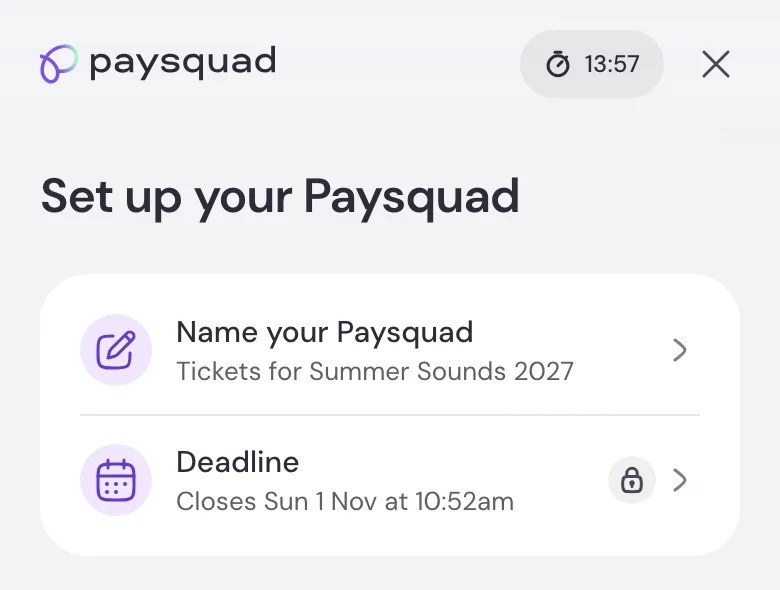
The countdown at the top of setup is separate. It’s the time you have to finish setting up your Paysquad.
How do I keep track of ticket claims?
Open your Paysquad link to see which tickets have been claimed and which are still available. Share the link again with anyone who still needs to claim.
Paysquad emails you updates when your squad claims tickets. With Leader Cover, you also receive an email when cover starts and a receipt showing what you paid when claiming closes.
If an email is missing, check spam or junk and search for Paysquad. Use the Paysquad page to check the latest status. For help with a payment email, use Contact Paysquad in the three-dot menu. For the tickets themselves, see How will I receive my tickets?