How do I claim tickets?
Updated
- Open the Paysquad link your squad leader sent you.
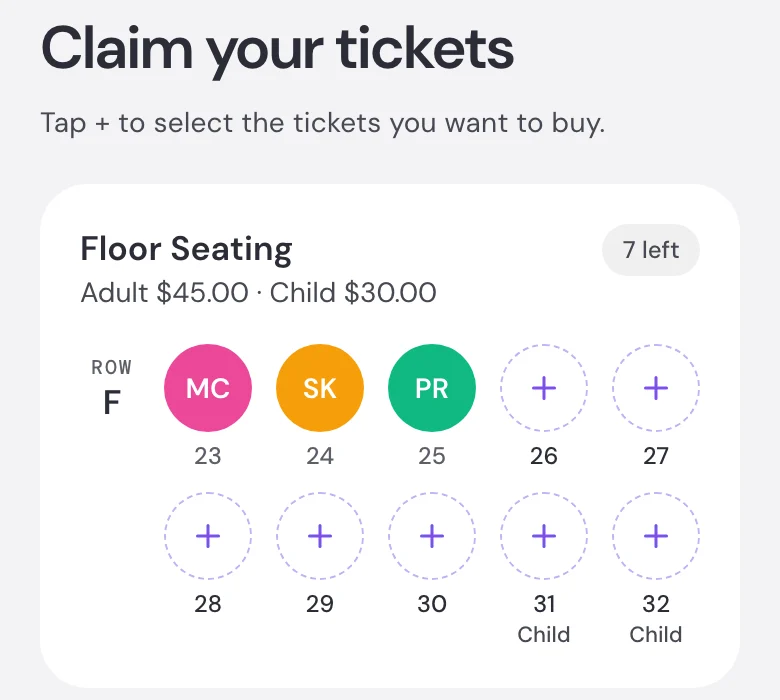
- Choose from the tickets still available in the group’s order. If the order has reserved seats, select the available seats you want.
- Continue to payment and check the tickets, fees and total.
- Enter your name, email and payment details, then complete the payment steps.
You don’t need to sign in. Claim before the deadline shown on the Paysquad.
If the page says the squad leader needs to claim first, check back once they’ve finished setting up.
Can I buy tickets for other people?
Yes. Select all the available tickets you want to pay for, including tickets for someone else.
Use your own email for the payment. The ticketing platform sends the tickets you paid for to you. Check its instructions for sharing or transferring them to someone else.
Ticket claims aren’t anonymous, so your squad can see who claimed the tickets.
What happens after I claim?
Paysquad sends your payment confirmation. The ticketing platform sends your tickets separately. See How will I receive my tickets? if you need help finding them.
If the Paysquad email is missing, check spam or junk and search for Paysquad. Check your payment’s status on the Paysquad page before paying again. Use Contact Paysquad in the three-dot menu if you need help.