How do I create a Paysquad?
Updated
- Add the items you want to your cart at a participating merchant and choose Paysquad at checkout.
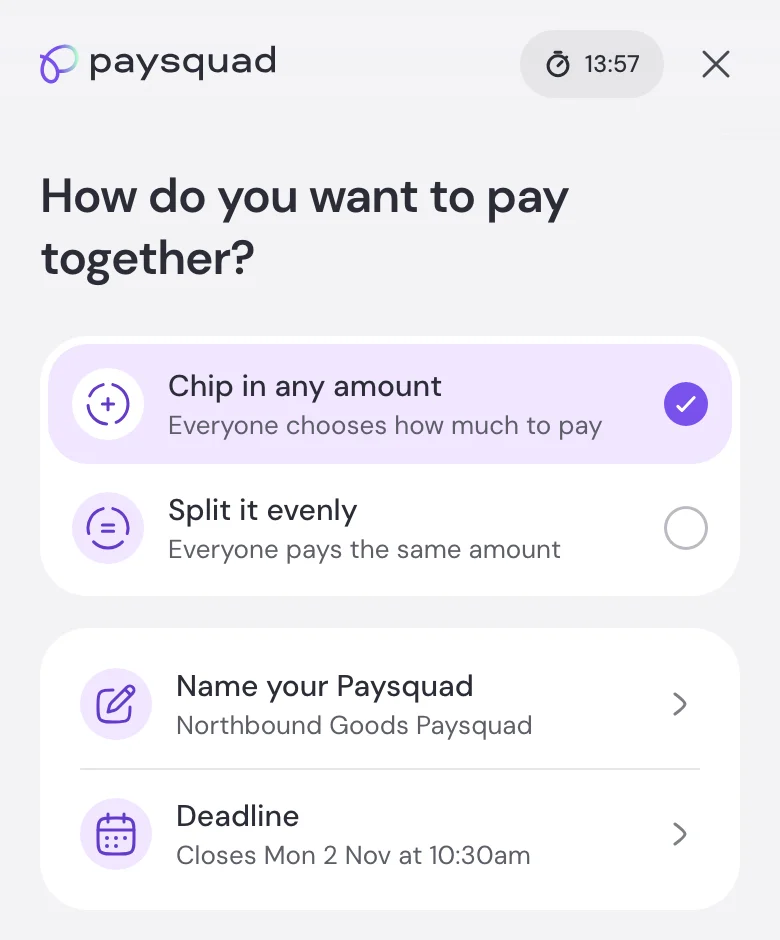
- Choose Chip in any amount or Split it evenly, if both are available. If you’re splitting evenly, choose how many splits you need.
- Keep the name shown or choose your own. Check the deadline and choose a closing time if that option is available.
- Select Create my Paysquad and follow the steps to verify your mobile number.
- Once your Paysquad is ready, share the link with your squad. You can chip in from the same page.
You don’t have to chip in first to share your Paysquad.
Can I use Paysquad for more than one product?
Yes. Your Paysquad covers the order you bring through checkout, which can include several products. Check the items, quantities and total before you start.
Can I change the cart items after creating a Paysquad?
You can’t add, remove or swap items in an existing Paysquad. To change the cart, cancel the open Paysquad and start again from the merchant’s checkout with the right items.
Check Can I cancel my Paysquad? before doing this, especially if people have already chipped in. If the order has completed, contact the merchant about changes.