How do I chip in?
Updated
- Open the Paysquad link you were sent and select Chip in.
- Choose an amount or the number of available splits you want to pay for.
- Continue to payment, check the total and enter your name, email and payment details.
- Follow the payment steps and wait for confirmation before closing the page.
You don’t need to sign in to chip in.
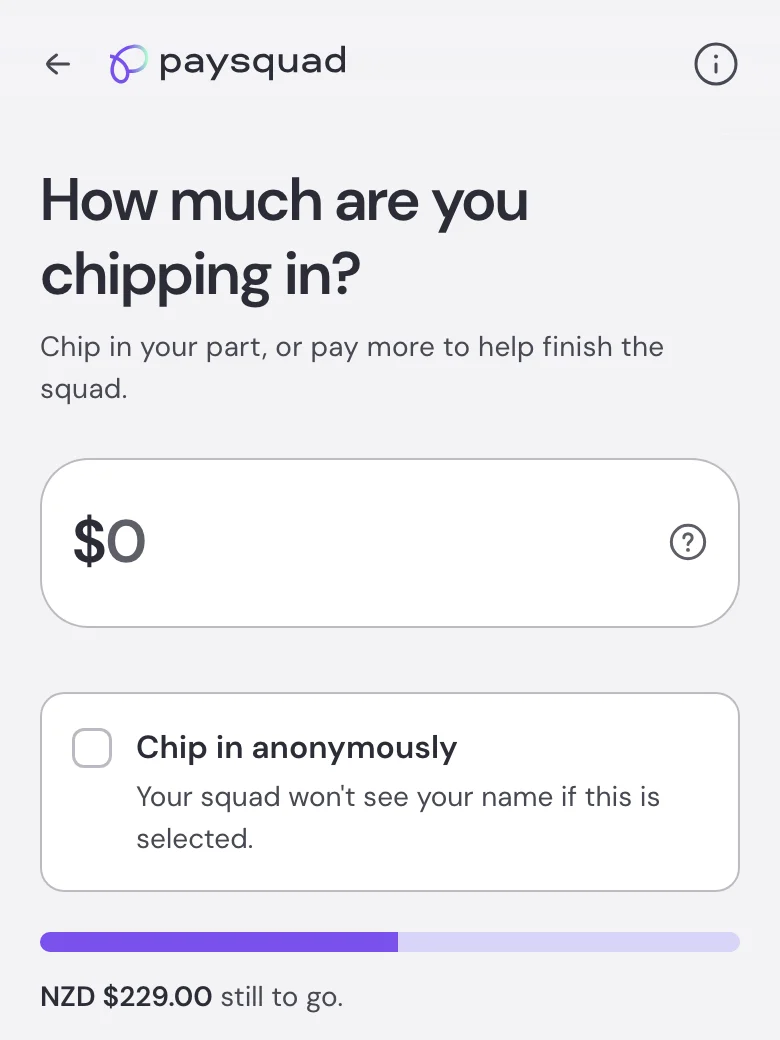
How much can I contribute?
With Chip in any amount, you choose an amount within the minimum and remaining total shown. The page will tell you if you need to adjust it, including if your amount would leave too little for the next person.
With Split it evenly, each split has a set price. You can choose more than one if there are enough left.
Can I contribute for more than one person?
Yes. You can make one contribution for you and someone else. Enter the combined amount or choose enough available splits to cover both of you.
Afterwards, add both names using Personalise, such as “Sam and Alex”. It’s still one contribution paid from your card. Adding a name doesn’t create a separate payment.
What happens after I chip in?
You’ll return to the Paysquad page, where you can see your contribution and how the squad is doing. You can also add a nickname or message. See How do I personalise my contribution?
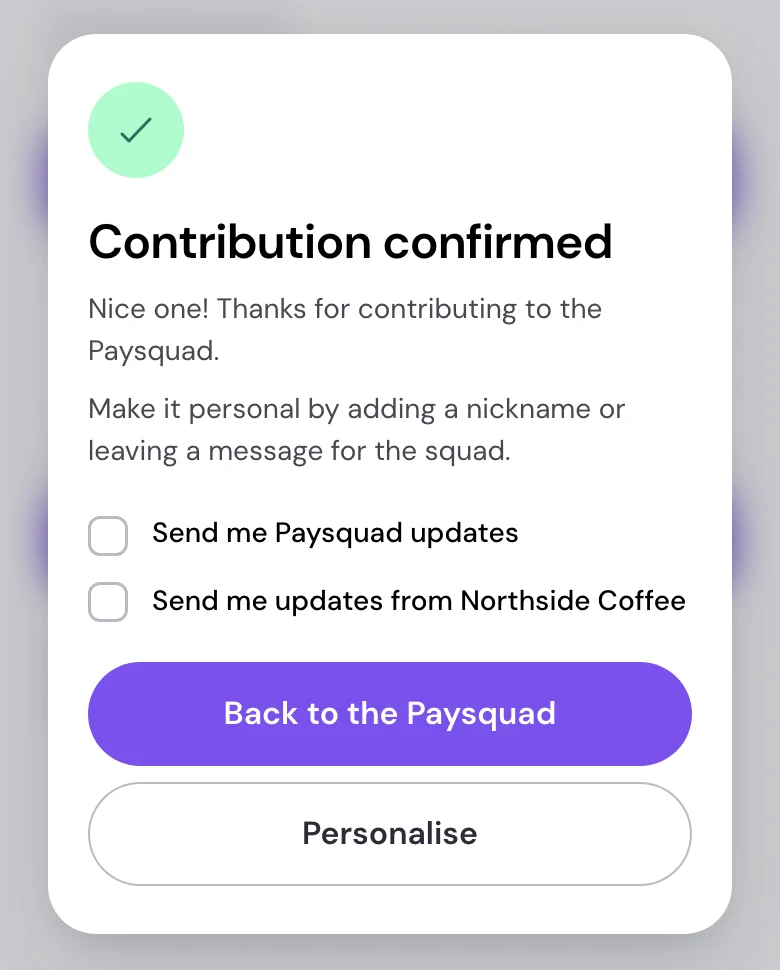
Paysquad emails your contribution confirmation and updates about the order’s outcome, such as completion or cancellation. Keep the Paysquad link so you can check progress.
For when your payment goes through, see When do I pay and when is the order confirmed?
What if I haven’t received a confirmation email?
Check the inbox you used during payment, including spam or junk. Search for Paysquad or notifications@mail.paysquad.co.
Open the Paysquad page and check your contribution’s status before trying to pay again. If it’s still unclear, use Contact Paysquad in the three-dot menu. Include your Paysquad link and the email you used.