How do I personalise my contribution?
Updated
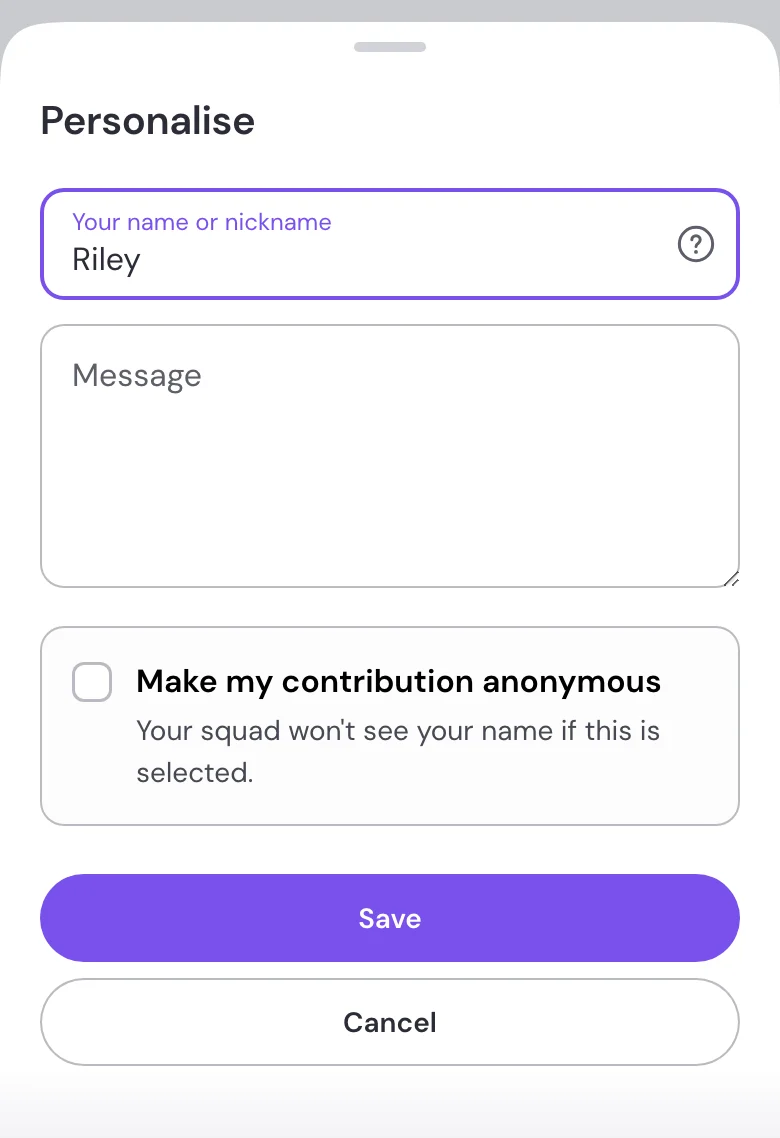
Once you’ve chipped in, select Personalise on your contribution.
- Your name or nickname: choose the name you’d like your squad to see. Chipping in with your partner? You can put both names here.
- Message: leave a note for your squad, from a birthday wish to an inside joke.
Save your changes when you’re done. Your nickname changes how your contribution appears to the squad. It doesn’t change the email used for your payment confirmation.
Can I contribute anonymously?
Yes. If Chip in anonymously is available when choosing your amount, you can turn it on before continuing. You can also select Make my contribution anonymous in Personalise afterwards.
Your name and nickname are hidden from the squad leader and other contributors on the Paysquad page. Any message you leave is still visible, so leave out identifying details if you want to stay anonymous.
You still need to provide the details required for payment. Anonymity applies to how you appear to your squad.
The squad leader’s first contribution stays named so people can see who started the Paysquad.
Why can’t I see Personalise?
Try opening your Paysquad in the same browser and on the same device you used to chip in. Paysquad needs to recognise the contribution as yours.
You can’t personalise a contribution after the Paysquad has expired, been cancelled or been refunded.